Learn more">
Skip to navigation
/n ![Widget interface options](file:assets/images/conversational-ai/widget-options.png)\n</Frame>\n\n**Available modes:**\n\n* **Voice only** (default): Users interact through speech only.\n* **Voice + text**: Users can switch between voice and text input during conversations.\n* **Chat Mode**: Conversations start in chat (text-only) mode without voice capabilities when initiated with a text message.\n\nFor more information on using chat (text-only) mode via our SDKs, see our [chat mode guide](/docs/eleven-agents/guides/chat-mode).\n\n<Note>\n The widget defaults to voice-only mode. Enable the text input toggle to allow multimodal\n interactions, or enable text-only mode support for purely text-based conversations when initiated\n via text.\n</Note>\n\n## Embedding the widget\n\n<Note>\n Widgets currently require public agents with authentication disabled. Ensure this is disabled in\n the **Advanced** tab of your agent settings.\n</Note>\n\nAdd this code snippet to your website's `<body>` section. Place it in your main `index.html` file for site-wide availability:\n\n<CodeBlocks>\n ```html title=\"Widget embed code\"\n <elevenlabs-convai agent-id=\"<replace-with-agent_7101k5zvyjhmfg983brhmhkd98n6>\"></elevenlabs-convai>\n <script\n src=https://elevenlabs.io/"https://unpkg.com/@elevenlabs/convai-widget-embed/"/n async\n type=\"text/javascript\"\n ></script>\n ```\n</CodeBlocks>\n\n<Info>\n For enhanced security, define allowed domains in your agent's **Allowlist** (located in the\n **Security** tab). This restricts access to specified hosts only.\n</Info>\n\n## Widget attributes\n\nThis basic embed code will display the widget with the default configuration defined in the agent's dashboard.\nThe widget supports various HTML attributes for further customization:\n\n<AccordionGroup>\n <Accordion title=\"Core configuration\">\n ```html\n <elevenlabs-convai\n agent-id=\"agent_id\" // Required: Your agent ID\n signed-url=\"signed_url\" // Alternative to agent-id\n server-location=\"us\" // Optional: \"us\" or default\n variant=\"expanded\" // Optional: Widget display mode\n dismissible=\"true\" // Optional: Allow the user to minimize the widget\n ></elevenlabs-convai>\n ```\n </Accordion>\n\n <Accordion title=\"Visual customization\">\n ```html\n <elevenlabs-convai\n avatar-image-url=\"https://...\" // Optional: Custom avatar image\n avatar-orb-color-1=\"#6DB035\" // Optional: Orb gradient color 1\n avatar-orb-color-2=\"#F5CABB\" // Optional: Orb gradient color 2\n ></elevenlabs-convai>\n ```\n </Accordion>\n\n <Accordion title=\"Text customization\">\n ```html\n <elevenlabs-convai\n action-text=\"Need assistance?\" // Optional: CTA button text\n start-call-text=\"Begin conversation\" // Optional: Start call button\n end-call-text=\"End call\" // Optional: End call button\n expand-text=\"Open chat\" // Optional: Expand widget text\n listening-text=\"Listening...\" // Optional: Listening state\n speaking-text=\"Assistant speaking\" // Optional: Speaking state\n ></elevenlabs-convai>\n ```\n </Accordion>\n\n <Accordion title=\"Markdown rendering\">\n The widget renders markdown in agent responses. Links display as plain text by default to prevent phishing.\n\n ```html\n <elevenlabs-convai\n markdown-link-allowed-hosts=\"example.com\" // Domains where links are clickable (use \"*\" for all)\n markdown-link-include-www=\"true\" // Also allow www variants (default: true)\n markdown-link-allow-http=\"true\" // Allow http:// links (default: true)\n syntax-highlight-theme=\"dark\" // Code block theme: \"dark\", \"light\", or \"auto\"\n ></elevenlabs-convai>\n ```\n </Accordion>\n</AccordionGroup>\n\n## Runtime configuration\n\nTwo more html attributes can be used to customize the agent's behavior at runtime. These two features can be used together, separately, or not at all\n\n### Dynamic variables\n\nDynamic variables allow you to inject runtime values into your agent's messages, system prompts, and tools.\n\n```html\n<elevenlabs-convai\n agent-id=\"agent_7101k5zvyjhmfg983brhmhkd98n6\"\n dynamic-variables='{\"user_name\": \"John\", \"account_type\": \"premium\"}'\n></elevenlabs-convai>\n```\n\nAll dynamic variables that the agent requires must be passed in the widget.\n\n<Info>\n See more in our [dynamic variables\n guide](/docs/eleven-agents/customization/personalization/dynamic-variables).\n</Info>\n\n### Overrides\n\nOverrides enable complete customization of your agent's behavior at runtime:\n\n```html\n<elevenlabs-convai\n agent-id=\"agent_7101k5zvyjhmfg983brhmhkd98n6\"\n override-language=\"es\"\n override-prompt=\"Custom system prompt for this user\"\n override-first-message=\"Hi! How can I help you today?\"\n override-voice-id=\"axXgspJ2msm3clMCkdW3\"\n></elevenlabs-convai>\n```\n\nOverrides can be enabled for specific fields, and are entirely optional.\n\n<Info>\n See more in our [overrides guide](/docs/eleven-agents/customization/personalization/overrides).\n</Info>\n\n## Visual customization\n\nCustomize the widget's appearance, text content, language selection, and more.\n\n<Tabs>\n <Tab title=\"Update via the dashboard\">\n Open your agent in the dashboard and navigate to the **Widget** tab to customize appearance, avatar, text, terms, language support, and more.\n\n <Frame background=https://elevenlabs.io/"subtle/">/n ![Widget customization](file:assets/images/conversational-ai/widget-overview.png)\n </Frame>\n </Tab>\n\n <Tab title=\"Update via the CLI\">\n <Steps>\n <Step title=\"Pull the agent configuration\">\n ```bash\n elevenlabs agents pull --agent \"<agent-name>\"\n ```\n </Step>\n\n <Step title=\"Edit `agent_configs/<agent-name>.json`\">\n Set fields under `platform_settings.widget`. For example, to change the orb colors and feedback mode:\n\n ```json\n {\n \"platform_settings\": {\n \"widget\": {\n \"variant\": \"full\",\n \"placement\": \"bottom-right\",\n \"avatar\": {\n \"type\": \"orb\",\n \"color_1\": \"#6DB035\",\n \"color_2\": \"#F5CABB\"\n },\n \"feedback_mode\": \"during\",\n \"bg_color\": \"#ffffff\",\n \"text_color\": \"#000000\",\n \"btn_color\": \"#000000\",\n \"btn_text_color\": \"#ffffff\"\n }\n }\n }\n ```\n </Step>\n\n <Step title=\"Push your changes\">\n ```bash\n elevenlabs agents push --agent \"<agent-name>\"\n ```\n </Step>\n </Steps>\n </Tab>\n\n <Tab title=\"Update via the API\">\n <CodeBlocks>\n ```python\n from elevenlabs import ElevenLabs\n\n elevenlabs = ElevenLabs()\n\n elevenlabs.conversational_ai.agents.update(\n agent_id=\"agent_7101k5zvyjhmfg983brhmhkd98n6\",\n platform_settings={\n \"widget\": {\n \"variant\": \"full\",\n \"placement\": \"bottom-right\",\n \"avatar\": {\n \"type\": \"orb\",\n \"color_1\": \"#6DB035\",\n \"color_2\": \"#F5CABB\",\n },\n \"feedback_mode\": \"during\",\n },\n },\n )\n ```\n\n ```typescript\n import { ElevenLabsClient } from \"@elevenlabs/elevenlabs-js\";\n\n const elevenlabs = new ElevenLabsClient();\n\n await elevenlabs.conversationalAi.agents.update(\"agent_7101k5zvyjhmfg983brhmhkd98n6\", {\n platformSettings: {\n widget: {\n variant: \"full\",\n placement: \"bottom-right\",\n avatar: {\n type: \"orb\",\n color1: \"#6DB035\",\n color2: \"#F5CABB\",\n },\n feedbackMode: \"during\",\n },\n },\n });\n ```\n </CodeBlocks>\n </Tab>\n</Tabs>\n\n<Tabs>\n <Tab title=\"Appearance\">\n Customize the widget colors and shapes to match your brand identity.\n\n <Frame background=https://elevenlabs.io/"subtle/">/n ![Widget appearance](file:assets/images/conversational-ai/appearance.gif)\n </Frame>\n </Tab>\n\n <Tab title=\"Feedback\">\n Gather user insights to improve agent performance. This can be used to fine-tune your agent's knowledge-base & system prompt.\n\n <Frame background=https://elevenlabs.io/"subtle/">/n ![Widget feedback](file:assets/images/conversational-ai/widget-feedback.png)\n </Frame>\n\n **Collection modes**\n\n * <strong>None</strong>: Disable feedback collection entirely.\n * <strong>During conversation</strong>: Support real-time feedback during conversations. Additionnal metadata such as the agent response that prompted the feedback will be collected to help further identify gaps.\n * <strong>After conversation</strong>: Display a single feedback prompt after the conversation.\n\n <Note>\n Send feedback programmatically via the [API](/docs/eleven-agents/api-reference/conversations/create) when using custom SDK implementations.\n </Note>\n </Tab>\n\n <Tab title=\"Avatar\">\n Configure the voice orb or provide your own avatar.\n\n <Frame background=https://elevenlabs.io/"subtle/">/n ![Widget orb customization](file:assets/images/conversational-ai/avatar.gif)\n </Frame>\n\n **Available options**\n\n * <strong>Orb</strong>: Choose two gradient colors (e.g., #6DB035 & #F5CABB).\n * <strong>Link/image</strong>: Use a custom avatar image.\n </Tab>\n\n <Tab title=\"Display text\">\n Customize all displayed widget text elements, for example to modify button labels.\n\n <Frame background=https://elevenlabs.io/"subtle/">/n ![Widget text contents](file:assets/images/conversational-ai/textcontents.gif)\n </Frame>\n </Tab>\n\n <Tab title=\"Terms\">\n Display custom terms and conditions before the conversation.\n\n <Frame background=https://elevenlabs.io/"subtle/">/n ![Terms setup](file:assets/images/conversational-ai/terms-setup.png)\n </Frame>\n\n **Available options**\n\n * <strong>Terms content</strong>: Use Markdown to format your policy text.\n * <strong>Local storage key</strong>: A key (e.g., \"terms_accepted\") to avoid prompting returning users.\n\n **Usage**\n\n The terms are displayed to users in a modal before starting the call:\n\n <Frame background=https://elevenlabs.io/"subtle/">/n ![Terms display](file:assets/images/conversational-ai/terms.png)\n </Frame>\n\n The terms can be written in Markdown, allowing you to:\n\n * Add links to external policies\n * Format text with headers and lists\n * Include emphasis and styling\n\n For more help with Markdown, see the [CommonMark help guide](https://commonmark.org/help/).\n\n <Info>\n Once accepted, the status is stored locally and the user won't be prompted again on subsequent\n visits.\n </Info>\n </Tab>\n\n <Tab title=\"Language\">\n Enable multi-language support in the widget.\n\n ![Widget language](file:assets/images/conversational-ai/language.gif)\n\n <Note>\n To enable language selection, you must first [add additional\n languages](/docs/eleven-agents/customization/voice/customization/language) to your agent.\n </Note>\n </Tab>\n\n <Tab title=\"Muting\">\n Allow users to mute their audio in the widget.\n\n ![Widget's mute button](file:assets/images/conversational-ai/widget-muted.png)\n\n To add the mute button please enable this in the `interface` card of the agent's `widget`\n settings.\n\n ![Widget's mute button](file:assets/images/conversational-ai/widget-mute-button.png)\n </Tab>\n\n <Tab title=\"Shareable page\">\n Customize your public widget landing page (shareable link).\n\n <Frame background=https://elevenlabs.io/"subtle/">/n ![Widget shareable page](file:assets/images/conversational-ai/widget-shareable-page.png)\n </Frame>\n\n **Available options**\n\n * <strong>Description</strong>: Provide a short paragraph explaining the purpose of the call.\n </Tab>\n</Tabs>\n\n---\n\n## Advanced implementation\n\n<Note>\n For more advanced customization, you should use the type-safe [ElevenAgents\n SDKs](/docs/eleven-api/resources/libraries) with a Next.js, React, or Python application.\n</Note>\n\n### Client Tools\n\nClient tools allow you to extend the functionality of the widget by adding event listeners. This enables the widget to perform actions such as:\n\n* Redirecting the user to a specific page\n* Sending an email to your support team\n* Redirecting the user to an external URL\n\nTo see examples of these tools in action, start a call with the agent in the bottom right corner of this page. The [source code is available on GitHub](https://github.com/elevenlabs/elevenlabs-dx/blob/main/fern/assets/scripts/widget.js) for reference.\n\n#### Creating a Client Tool\n\nTo create your first client tool, follow the [client tools guide](/docs/eleven-agents/customization/tools/client-tools).\n\n<Accordion title=\"Example: Creating the `redirectToExternalURL` Tool\">\n <Frame background=https://elevenlabs.io/"subtle/">/n ![Client tool configuration](file:assets/images/conversational-ai/widget-client-tool-setup.png)\n </Frame>\n</Accordion>\n\n#### Example Implementation\n\nBelow is an example of how to handle the `redirectToExternalURL` tool triggered by the widget in your JavaScript code:\n\n<CodeBlocks>\n ```javascript title=\"index.js\"\n document.addEventListener(\"DOMContentLoaded\", () => {\n const widget = document.querySelector(\"elevenlabs-convai\");\n\n if (widget) {\n // Listen for the widget's \"call\" event to trigger client-side tools\n widget.addEventListener(\"elevenlabs-convai:call\", (event) => {\n event.detail.config.clientTools = {\n // Note: To use this example, the client tool called \"redirectToExternalURL\" (case-sensitive) must have been created with the configuration defined above.\n redirectToExternalURL: ({ url }) => {\n window.open(url, \"_blank\", \"noopener,noreferrer\");\n },\n };\n });\n }\n });\n ```\n</CodeBlocks>\n\n<Info>\n Explore our type-safe [SDKs](/docs/eleven-api/resources/libraries) for React, Next.js, and Python\n implementations.\n</Info>\n"],"perViewerCopy":[0,true],"askAiEnabled":[0,false],"skillsConfig":[0],"availability":[0],"pageActions":[0,{"options":[0,{"copyPage":[0,true],"viewAsMarkdown":[0,true],"askAi":[0,true],"openAi":[0,true],"claude":[0,true],"cursor":[0,true],"claudeCode":[0,true],"vscode":[0,false],"custom":[1,[[0,{"title":[0,"LLMs full"],"subtitle":[0,"See the entire documentation site as markdown for LLMs"],"url":[0,"https://elevenlabs.io/docs/llms-full.txt"],"icon":[0,"fa-solid fa-file-code"]}]]]}]}],"pageActionsStyle":[0,"default"],"pageActionFiles":[0],"showRssFeedButton":[0,false],"showPageActions":[0,true]}" ssr client="deferred" opts="{"name":"PageHeaderIsland","value":true}" await-children>

Widget customization

Learn how to customize the widget appearance to match your brand, and personalize the agent's behavior from html.

Widgets enable instant integration of ElevenAgents into any website. You can either customize your widget through the UI or through our type-safe ElevenAgents SDKs for complete control over styling and behavior. The SDK overrides take priority over UI customization. Our widget is multimodal and able to process both text and audio.

You can also retrieve an agent’s widget configuration and shareable link from Claude or another MCP client through the hosted MCP server.

Modality configuration

The widget supports flexible input modes to match your use case. Configure these options in the dashboard under Channels → Widget → Interface.

Multimodality is fully supported in our client SDKs, see more here.
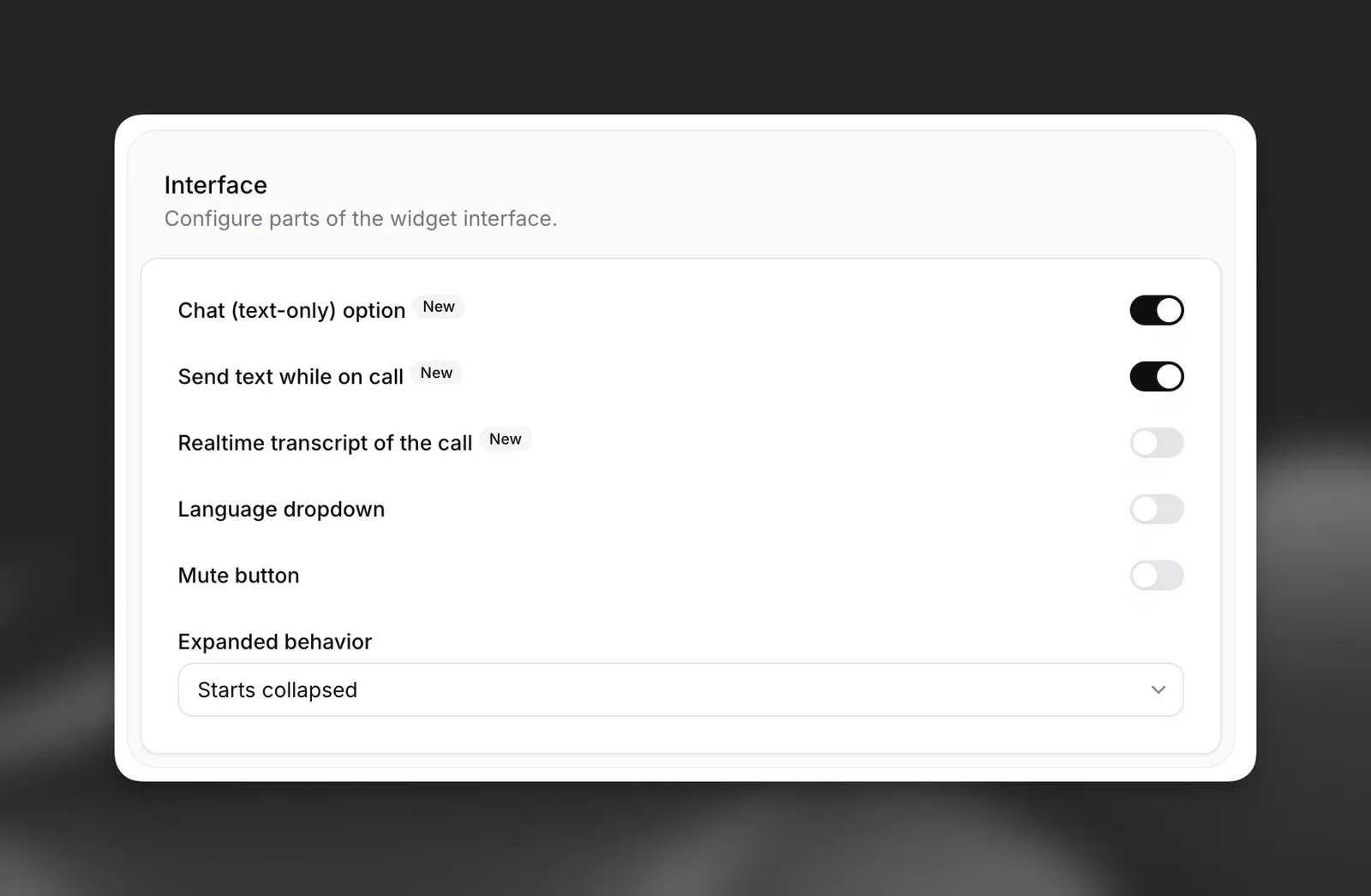
Widget interface options

Available modes:

  • Voice only (default): Users interact through speech only.
  • Voice + text: Users can switch between voice and text input during conversations.
  • Chat Mode: Conversations start in chat (text-only) mode without voice capabilities when initiated with a text message.

For more information on using chat (text-only) mode via our SDKs, see our chat mode guide.

The widget defaults to voice-only mode. Enable the text input toggle to allow multimodal interactions, or enable text-only mode support for purely text-based conversations when initiated via text.

Embedding the widget

Widgets currently require public agents with authentication disabled. Ensure this is disabled in the Advanced tab of your agent settings.

Add this code snippet to your website’s <body> section. Place it in your main index.html file for site-wide availability:

Widget embed code
<elevenlabs-convai agent-id="<replace-with-agent_7101k5zvyjhmfg983brhmhkd98n6>"></elevenlabs-convai>
<script
src="https://unpkg.com/@elevenlabs/convai-widget-embed"
async
type="text/javascript"
></script>

For enhanced security, define allowed domains in your agent’s Allowlist (located in the Security tab). This restricts access to specified hosts only.

Widget attributes

This basic embed code will display the widget with the default configuration defined in the agent’s dashboard. The widget supports various HTML attributes for further customization:

<elevenlabs-convai
agent-id="agent_id" // Required: Your agent ID
signed-url="signed_url" // Alternative to agent-id
server-location="us" // Optional: "us" or default
variant="expanded" // Optional: Widget display mode
dismissible="true" // Optional: Allow the user to minimize the widget
></elevenlabs-convai>
<elevenlabs-convai
avatar-image-url="https://..." // Optional: Custom avatar image
avatar-orb-color-1="#6DB035" // Optional: Orb gradient color 1
avatar-orb-color-2="#F5CABB" // Optional: Orb gradient color 2
></elevenlabs-convai>
<elevenlabs-convai
action-text="Need assistance?" // Optional: CTA button text
start-call-text="Begin conversation" // Optional: Start call button
end-call-text="End call" // Optional: End call button
expand-text="Open chat" // Optional: Expand widget text
listening-text="Listening..." // Optional: Listening state
speaking-text="Assistant speaking" // Optional: Speaking state
></elevenlabs-convai>

The widget renders markdown in agent responses. Links display as plain text by default to prevent phishing.

<elevenlabs-convai
markdown-link-allowed-hosts="example.com" // Domains where links are clickable (use "*" for all)
markdown-link-include-www="true" // Also allow www variants (default: true)
markdown-link-allow-http="true" // Allow http:// links (default: true)
syntax-highlight-theme="dark" // Code block theme: "dark", "light", or "auto"
></elevenlabs-convai>

Runtime configuration

Two more html attributes can be used to customize the agent’s behavior at runtime. These two features can be used together, separately, or not at all

Dynamic variables

Dynamic variables allow you to inject runtime values into your agent’s messages, system prompts, and tools.

<elevenlabs-convai
agent-id="agent_7101k5zvyjhmfg983brhmhkd98n6"
dynamic-variables='{"user_name": "John", "account_type": "premium"}'
></elevenlabs-convai>

All dynamic variables that the agent requires must be passed in the widget.

See more in our dynamic variables guide.

Overrides

Overrides enable complete customization of your agent’s behavior at runtime:

<elevenlabs-convai
agent-id="agent_7101k5zvyjhmfg983brhmhkd98n6"
override-language="es"
override-prompt="Custom system prompt for this user"
override-first-message="Hi! How can I help you today?"
override-voice-id="axXgspJ2msm3clMCkdW3"
></elevenlabs-convai>

Overrides can be enabled for specific fields, and are entirely optional.

See more in our overrides guide.

Visual customization

Customize the widget’s appearance, text content, language selection, and more.

Open your agent in the dashboard and navigate to the Widget tab to customize appearance, avatar, text, terms, language support, and more.
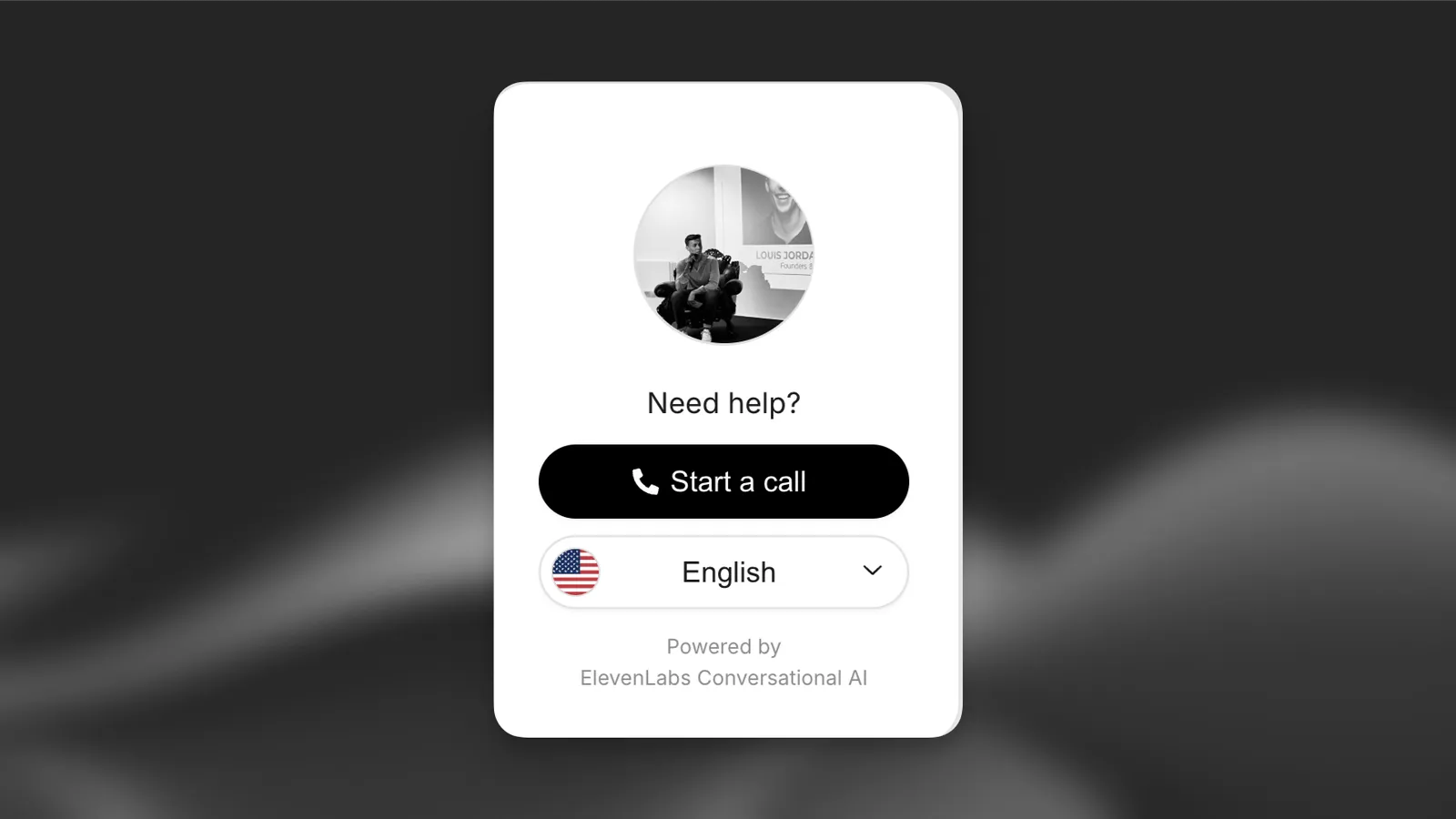
Widget customization

Customize the widget colors and shapes to match your brand identity.
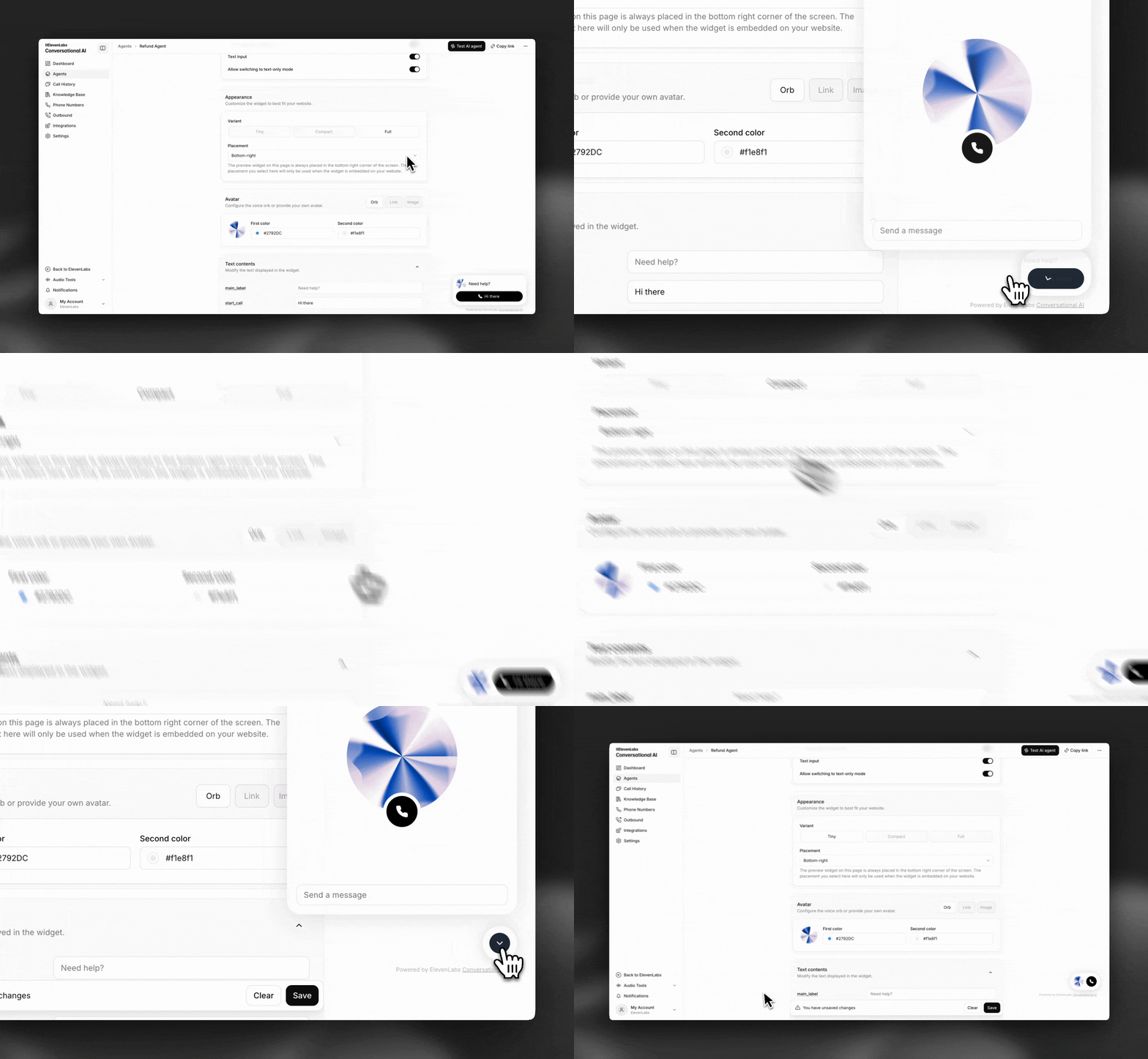
Widget appearance


Advanced implementation

For more advanced customization, you should use the type-safe ElevenAgents SDKs with a Next.js, React, or Python application.

Client Tools

Client tools allow you to extend the functionality of the widget by adding event listeners. This enables the widget to perform actions such as:

  • Redirecting the user to a specific page
  • Sending an email to your support team
  • Redirecting the user to an external URL

To see examples of these tools in action, start a call with the agent in the bottom right corner of this page. The source code is available on GitHub for reference.

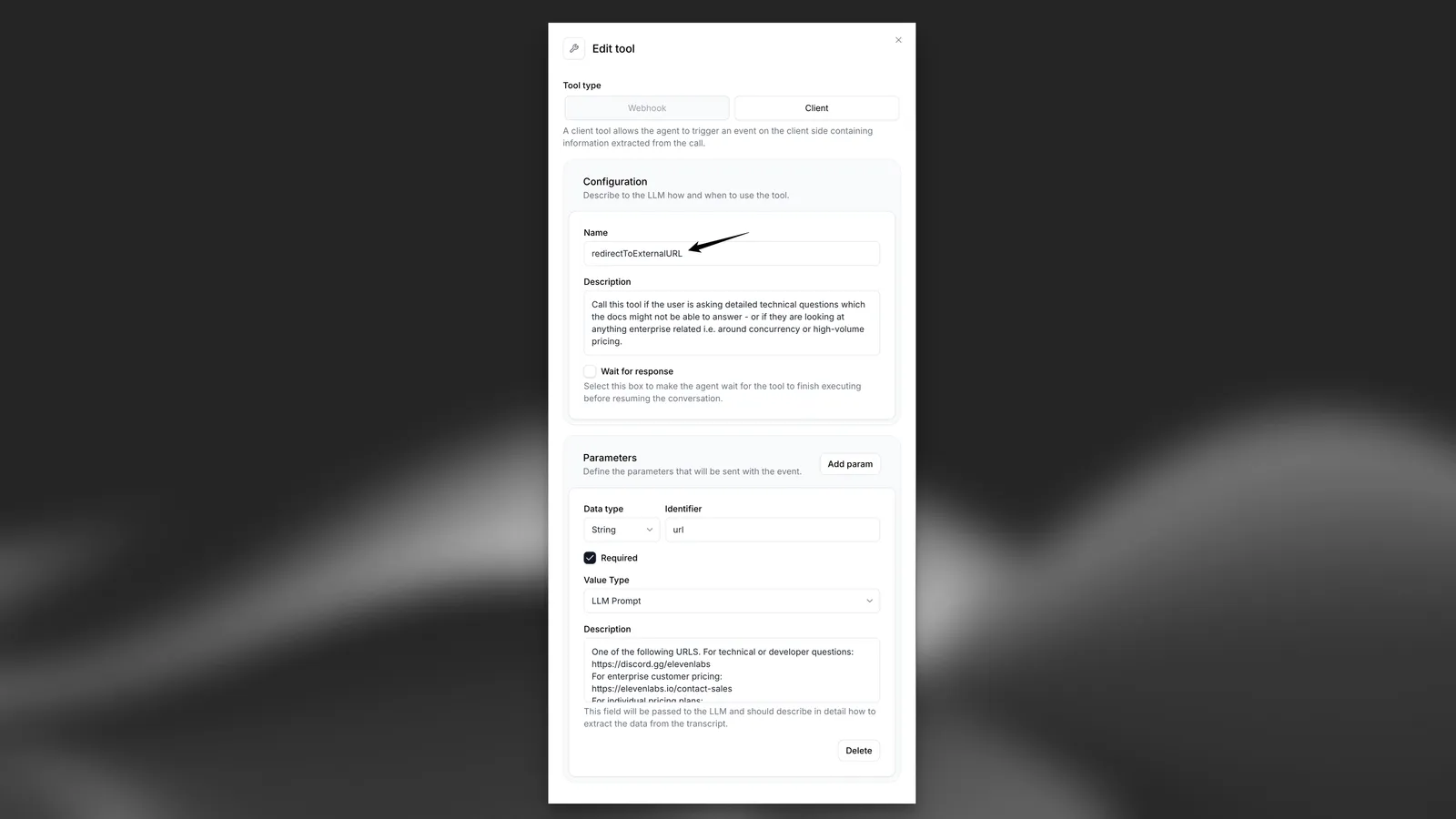
Creating a Client Tool

To create your first client tool, follow the client tools guide.

Client tool configuration

Example Implementation

Below is an example of how to handle the redirectToExternalURL tool triggered by the widget in your JavaScript code:

index.js
document.addEventListener("DOMContentLoaded", () => {
const widget = document.querySelector("elevenlabs-convai");
if (widget) {
// Listen for the widget's "call" event to trigger client-side tools
widget.addEventListener("elevenlabs-convai:call", (event) => {
event.detail.config.clientTools = {
// Note: To use this example, the client tool called "redirectToExternalURL" (case-sensitive) must have been created with the configuration defined above.
redirectToExternalURL: ({ url }) => {
window.open(url, "_blank", "noopener,noreferrer");
},
};
});
}
});

Explore our type-safe SDKs for React, Next.js, and Python implementations.